FnOS
This article will introduce how to configure WalleCube Smart UPS on the FnOS background and related instructions for Remote Power-on (WOL).
Model Adaptation
FnOS currently mainly targets DIY NAS. Currently, only DC-powered hosts are supported to use this UPS.
Common Compatible Models: Such as WTR PRO and various small hosts that support DC power supply.
Background Installation
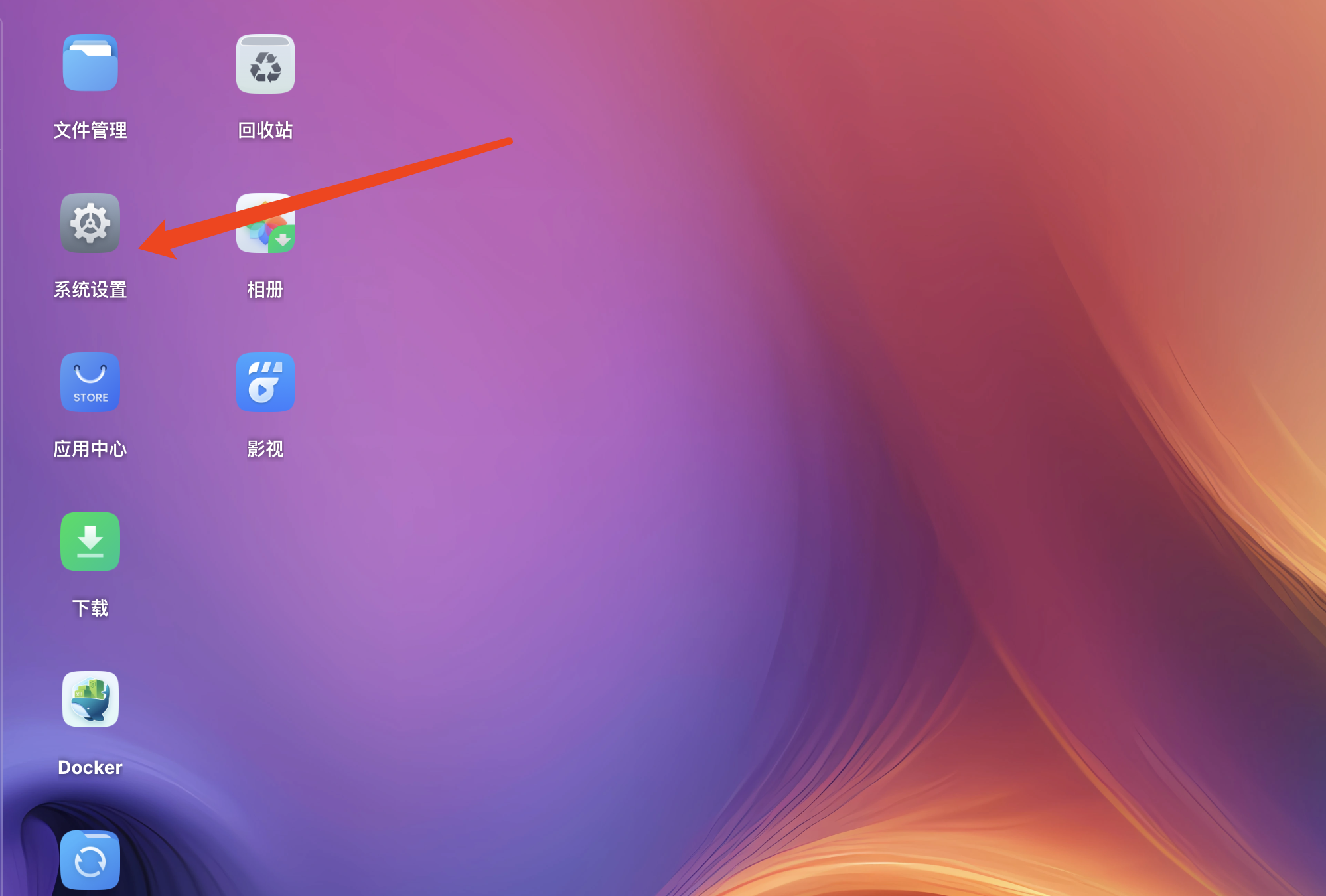
- Enter System Settings: Log in to the FnOS background and click System Settings on the desktop.
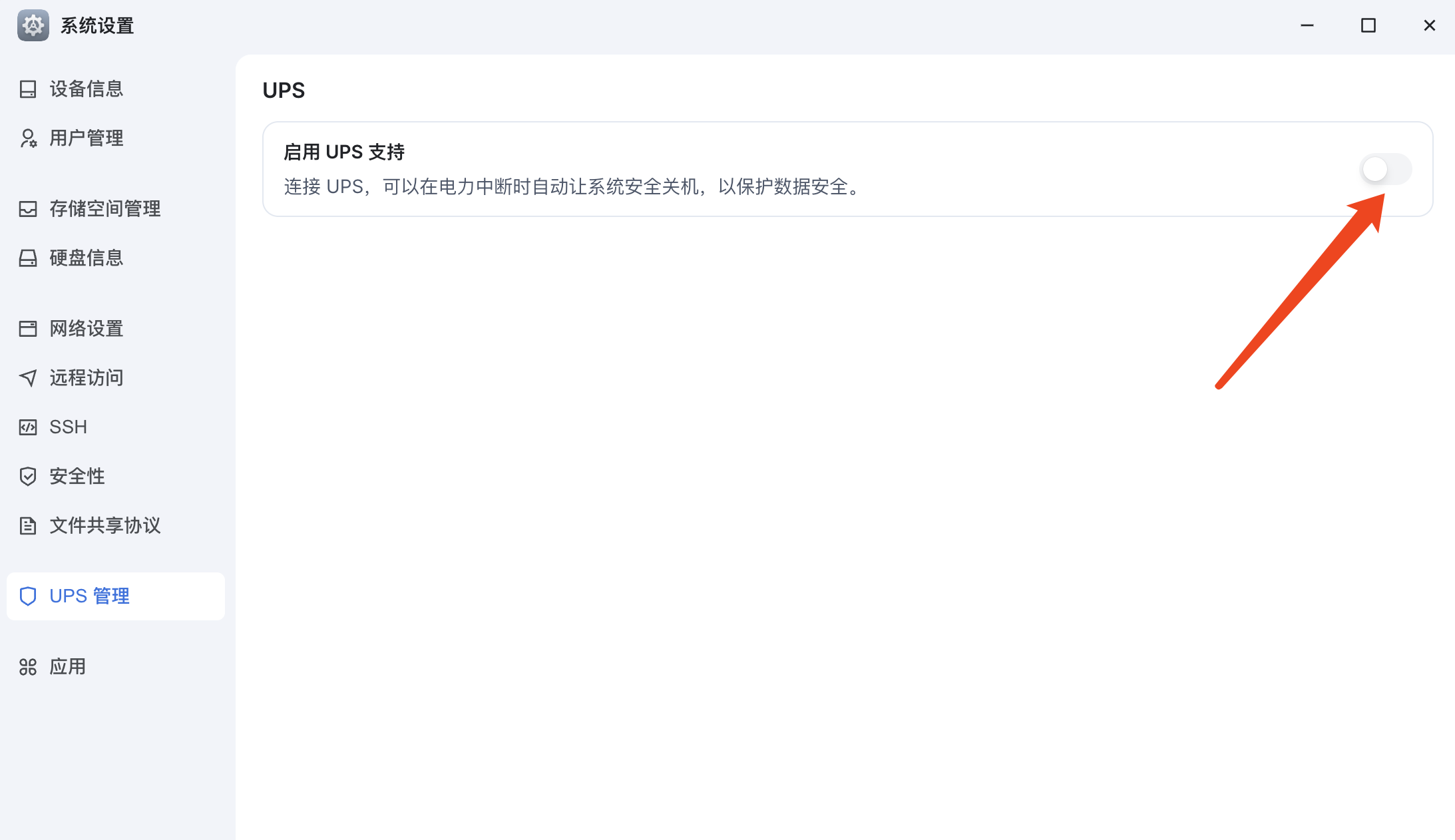
- Enable UPS Management: Select UPS Management in the left menu and click the On switch on the page.
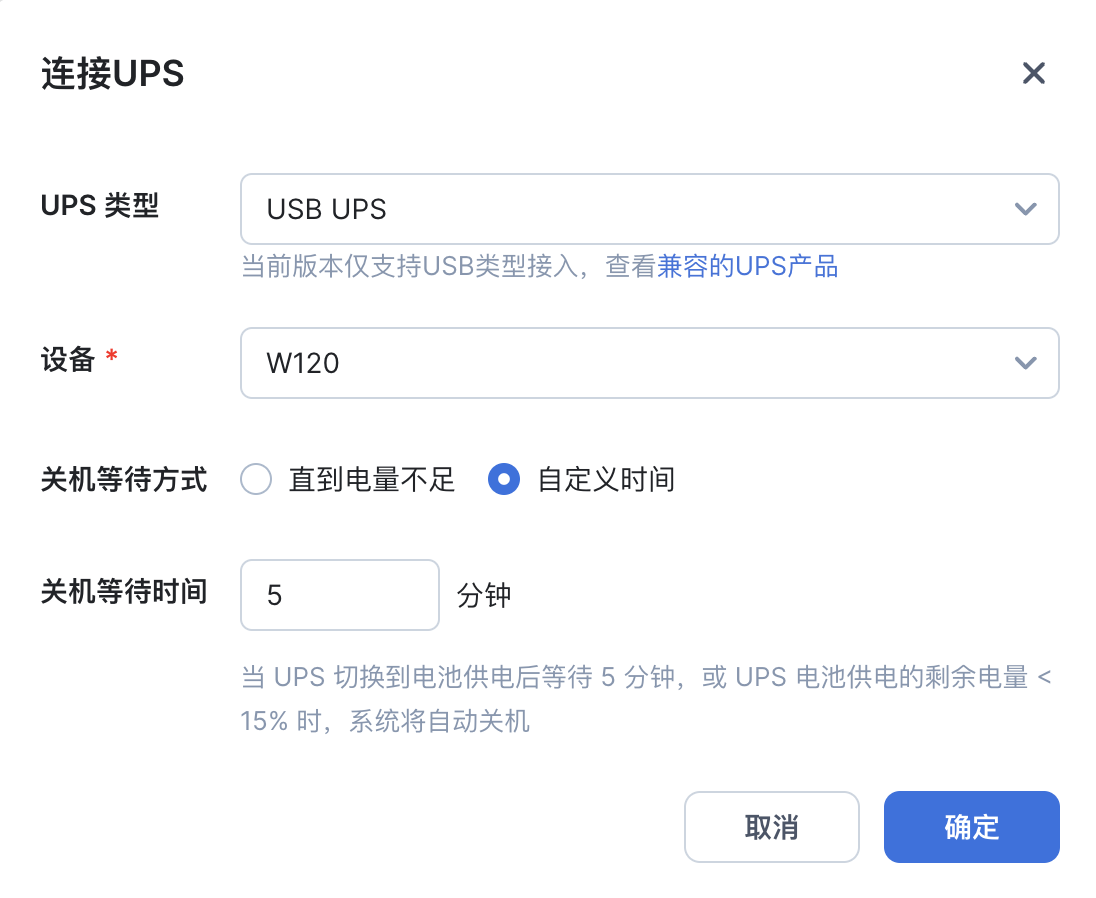
- Configure UPS Strategy:
- Confirm that the system has recognized the UPS device.
- Shutdown Strategy: Recommended to select Custom Time and set it to 5 minutes.
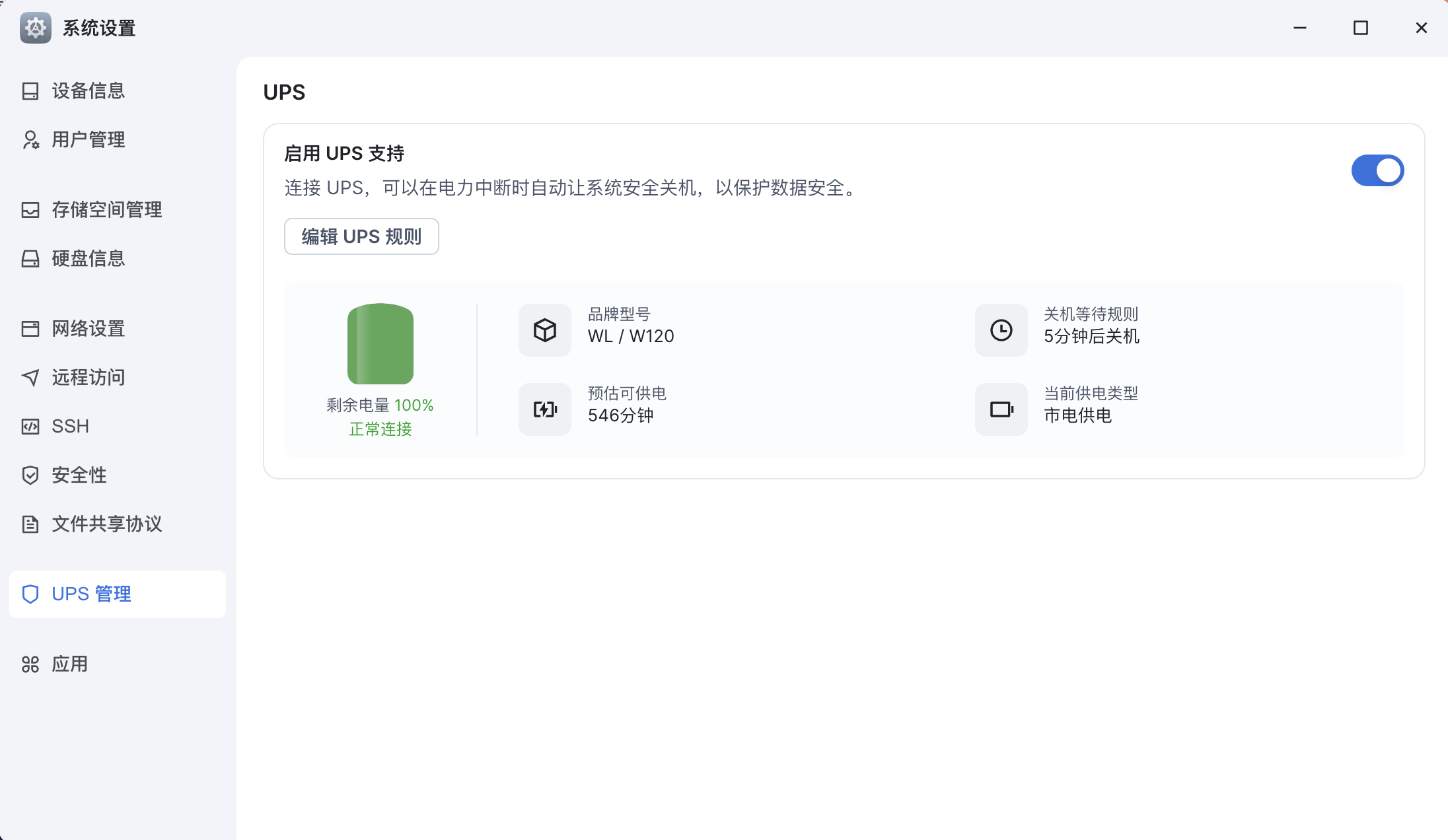
- Confirm Status: After clicking save, you can see that the UPS is in a normal connection state in the UPS management interface.
WOL Remote Power-on
Since FnOS is mostly installed on DIY hardware, the remote power-on function mainly depends on your motherboard hardware support:
- Hardware Support: Please ensure that your host motherboard supports and has enabled the WOL (Wake on LAN) function in the BIOS.
- Local Area Network Test: It is recommended to download a third-party remote power-on app (such as “Remote Power-on”, etc.) to test whether the host can be normally awakened in the local area network first.
- App Configuration: If the test is successful, you can get the network card’s MAC Address and fill it into the Remote Power-on -> Manual Power-on tab of the WalleCube app. Click Power On Now after filling in to achieve remote management.