QNAP
This article will introduce how to configure WalleCube Smart UPS on the QNAP background and set up Remote Power-on (WOL).
Model Adaptation
WalleCube Smart UPS supports QNAP hosts with QTS 5.0 and above, and those that support external power supply.
Note: Currently known to not support 416 and 216 models.
Background Installation
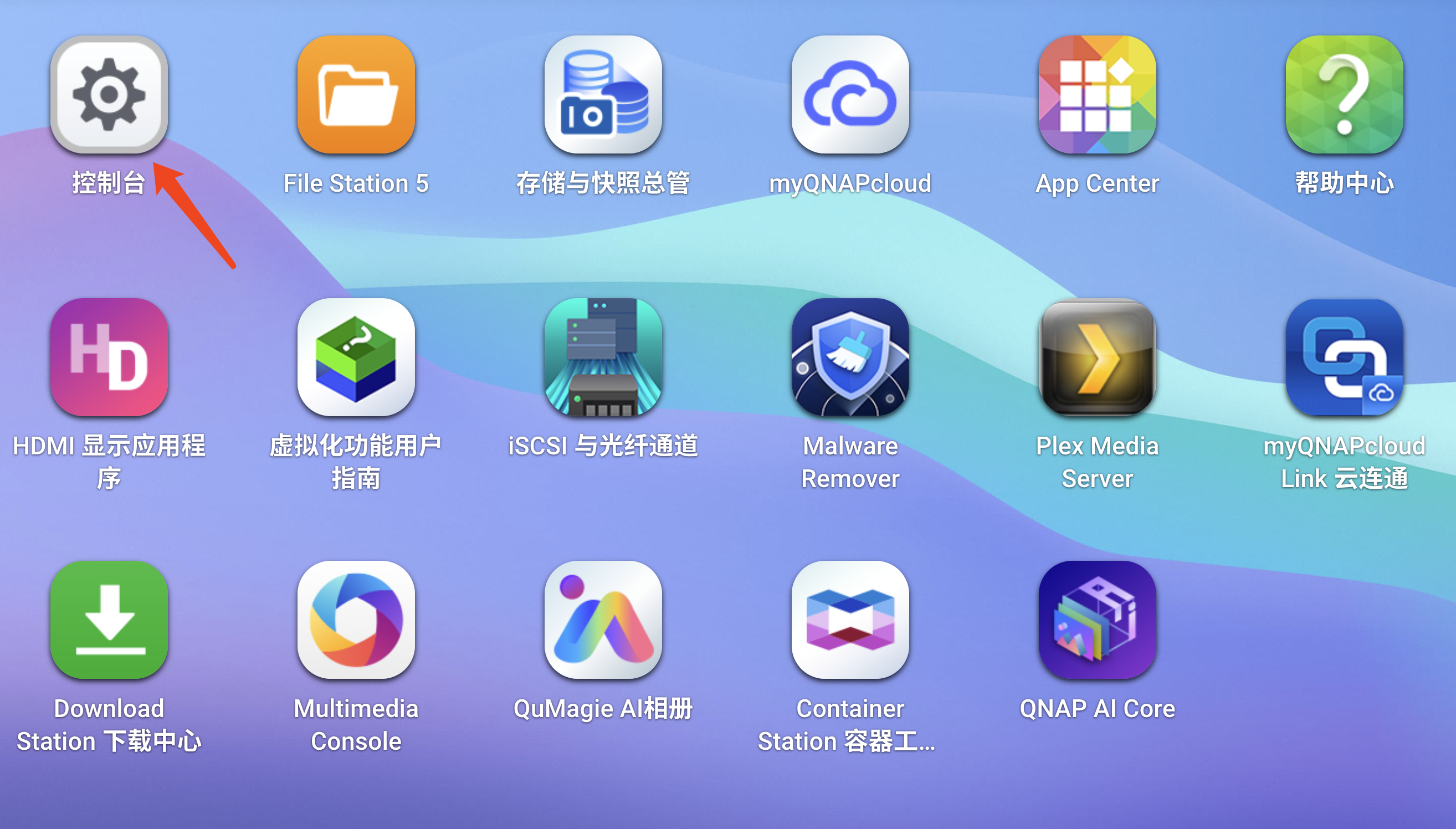
- Enter Control Panel: Log in to the QNAP background and click Control Panel on the desktop.
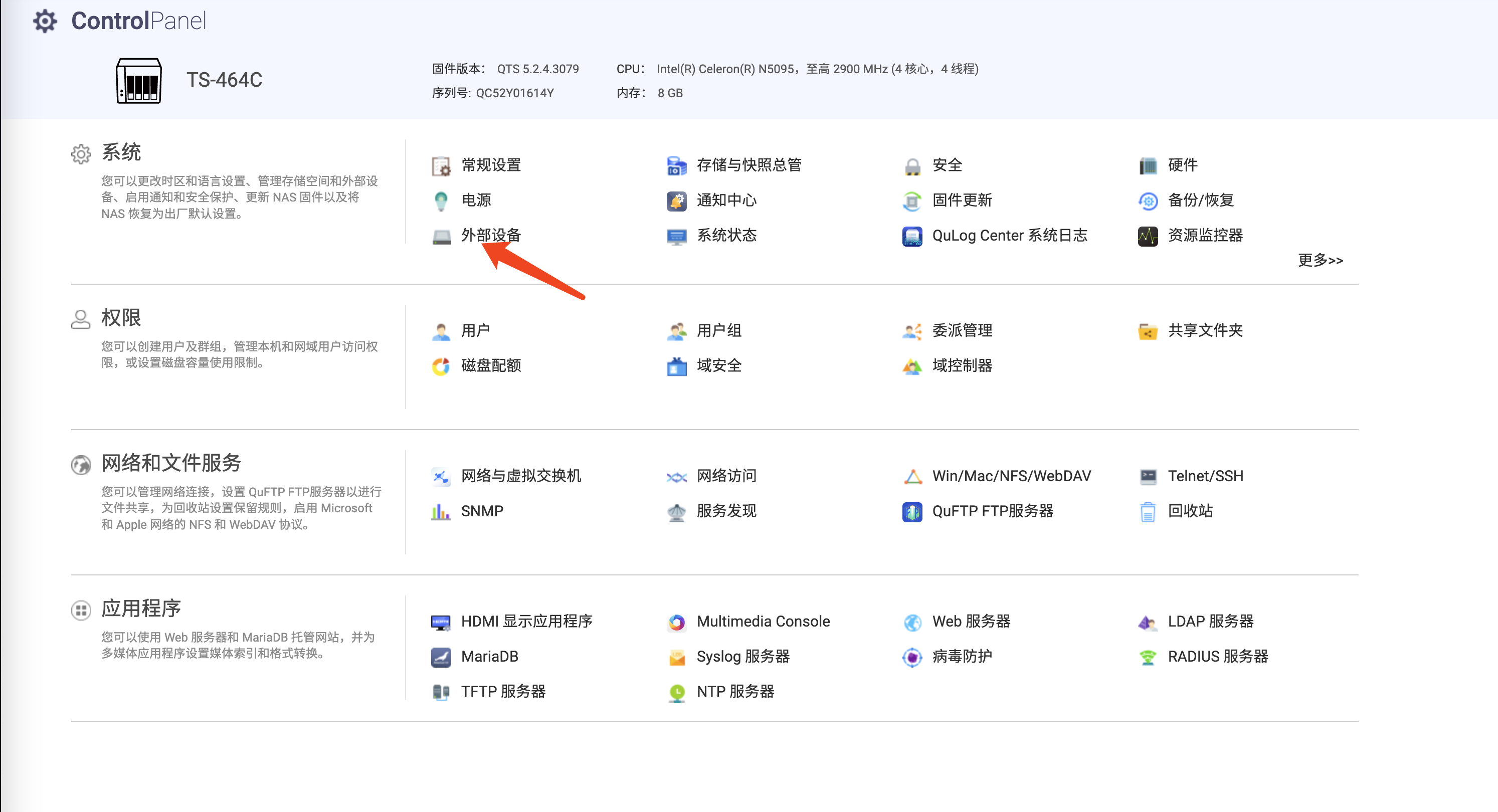
- Enter External Device: Click External Device in the Control Panel.
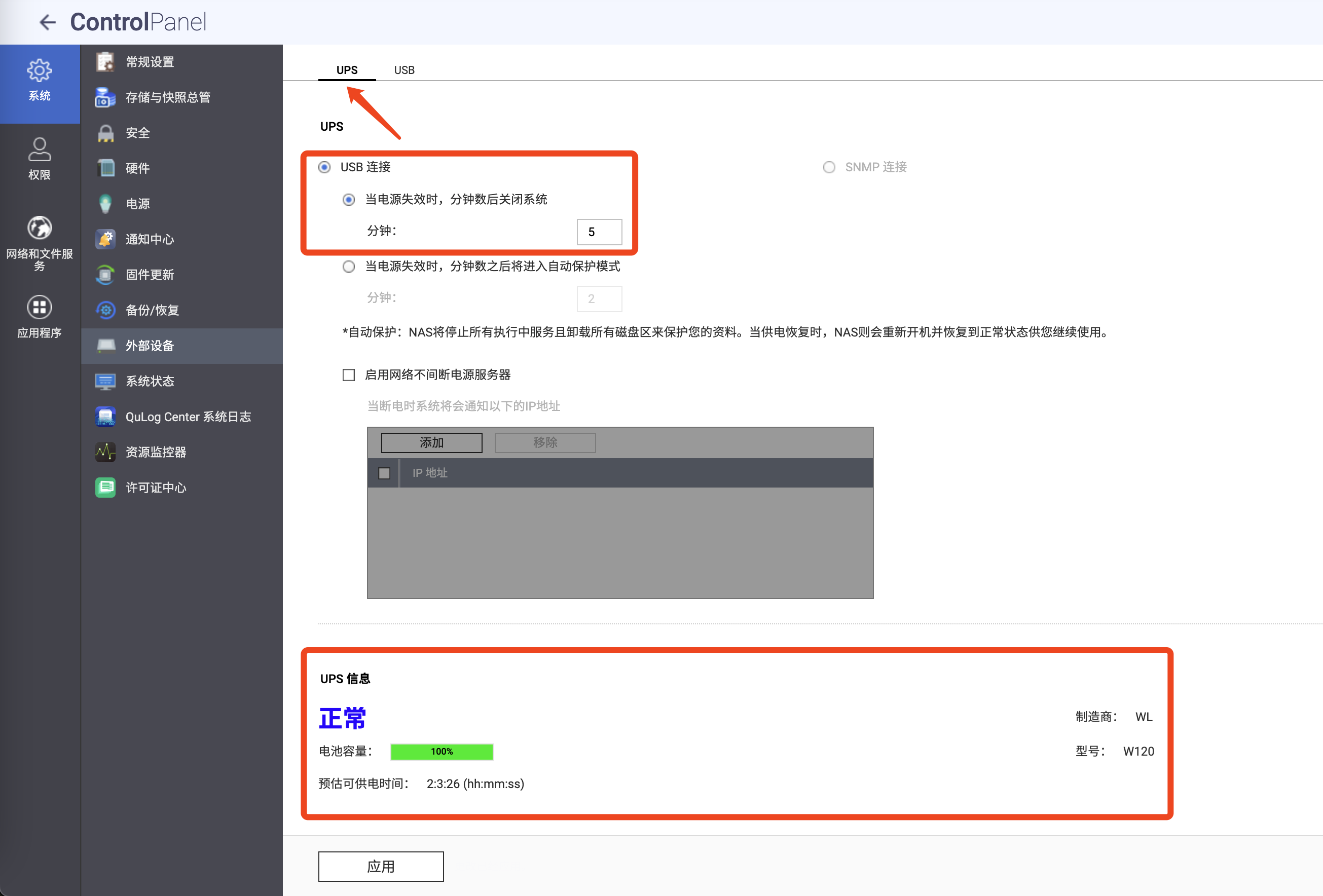
- Configure UPS Options:
- Switch to the UPS tab.
- Power Failure Strategy: Recommended to select “When the power fails”, and customize to shut down after 5 minutes.
- Verify Connection: If the detailed information of the UPS is displayed at the bottom of the page, the connection is successful.
WOL Remote Power-on
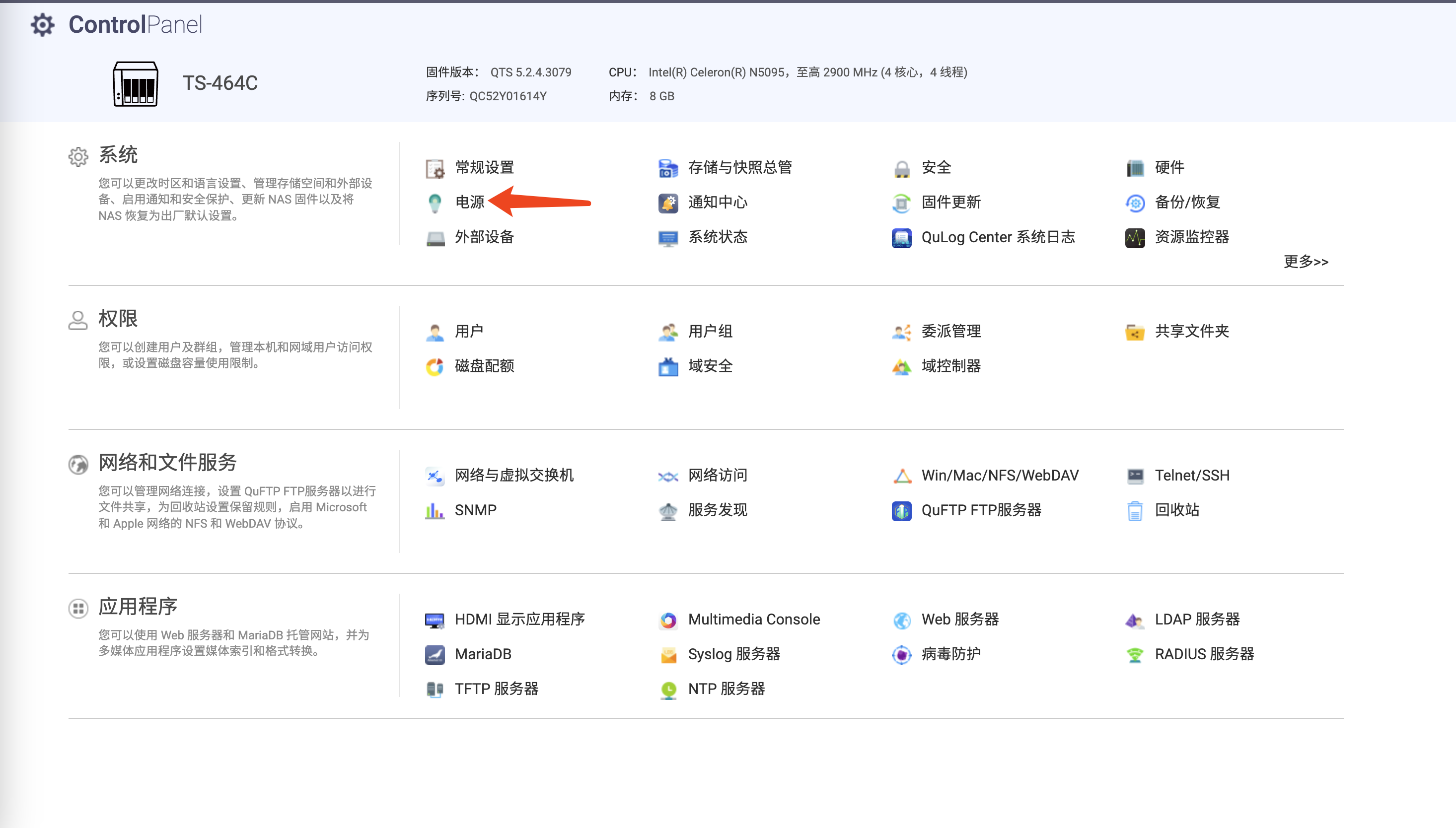
- Enter Control Panel: Log in to the QNAP background and click Control Panel.
- Enter Power Settings: Click System -> Power.
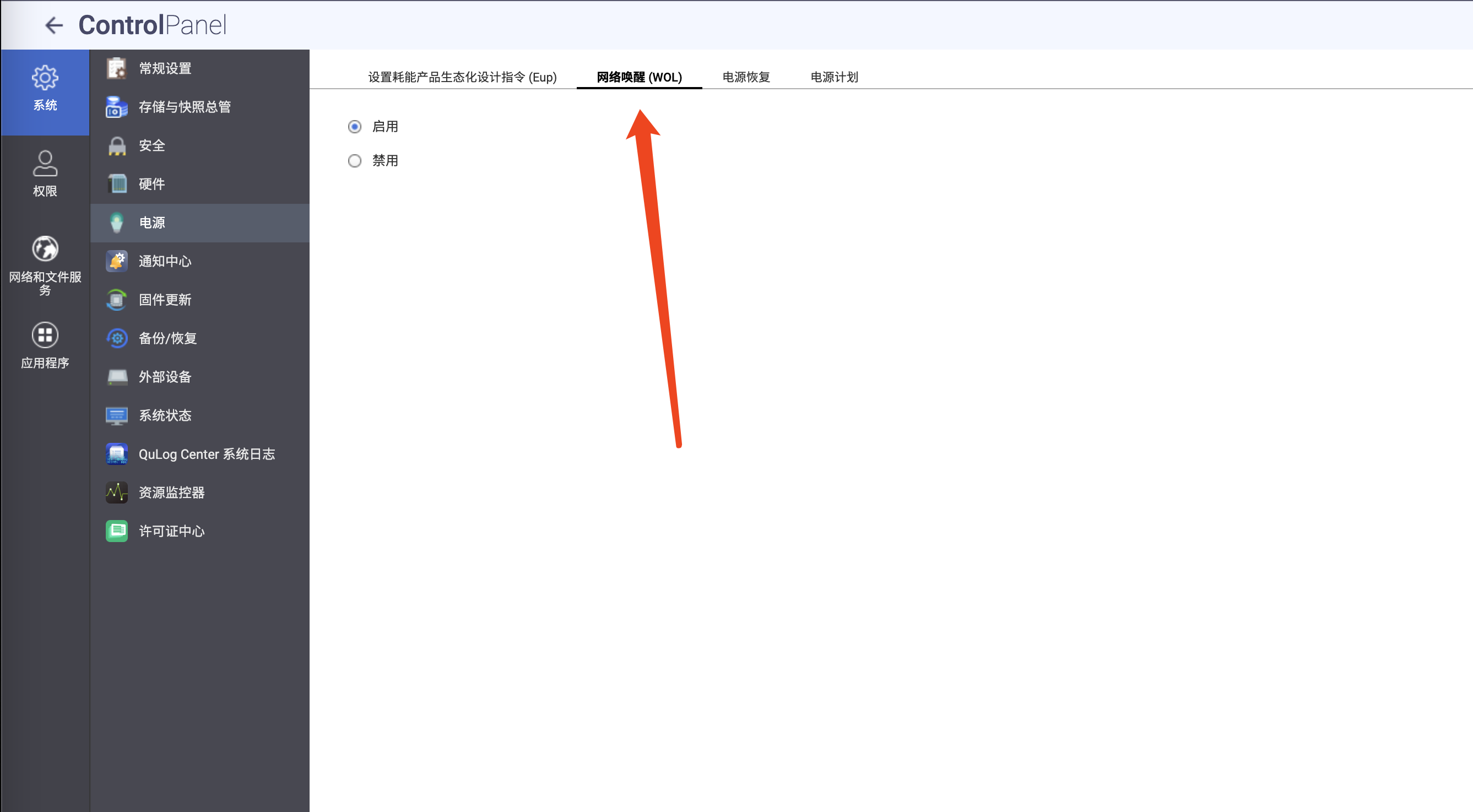
- Enable Wake on LAN: In the wake-up related settings, find Wake-on-LAN (WOL) and set it to On.
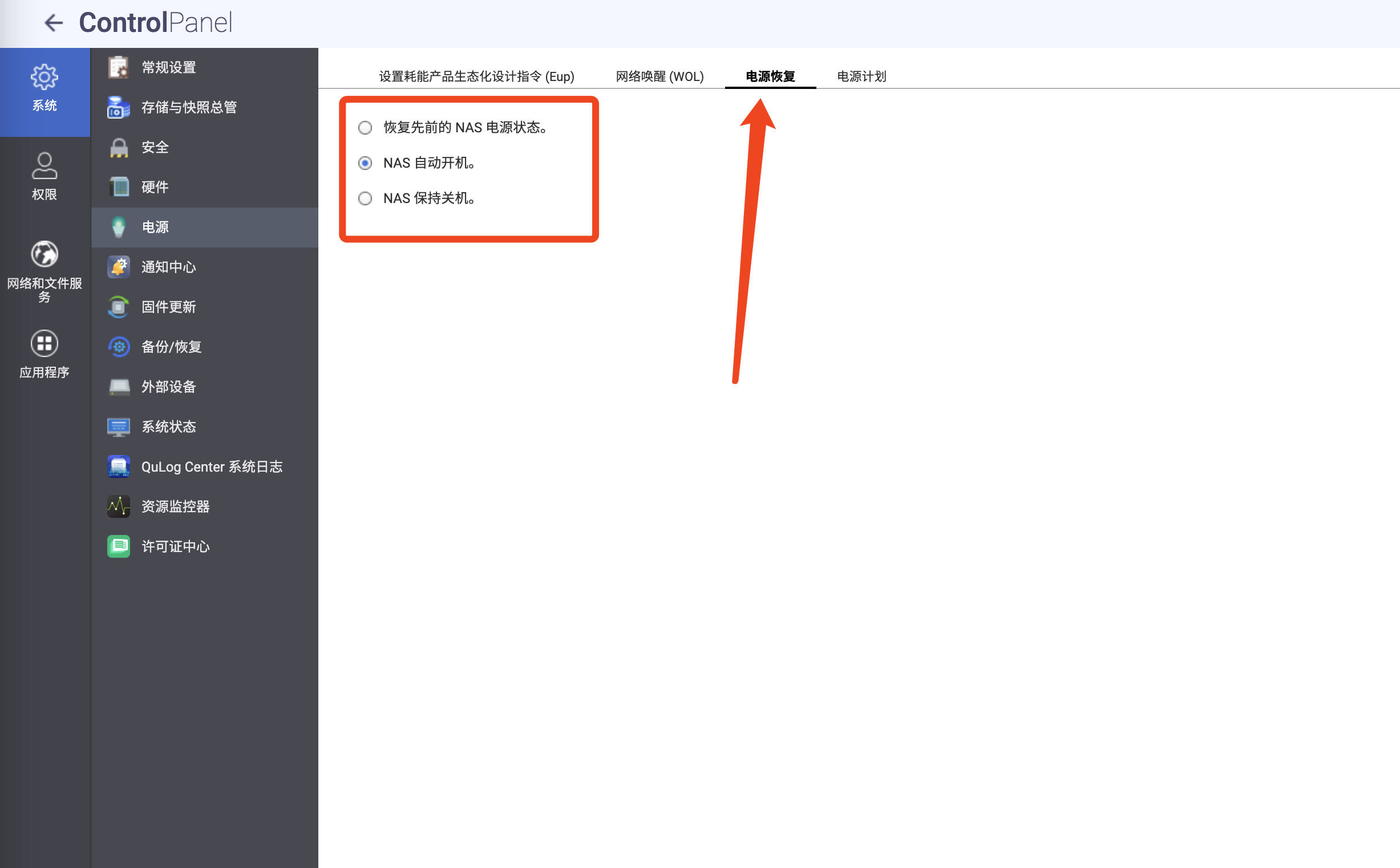
- Configure Power Recovery Policy: In the “Power Recovery” tab, adjust the setting to NAS Auto Power-on. This way, the NAS will automatically start after power is restored.
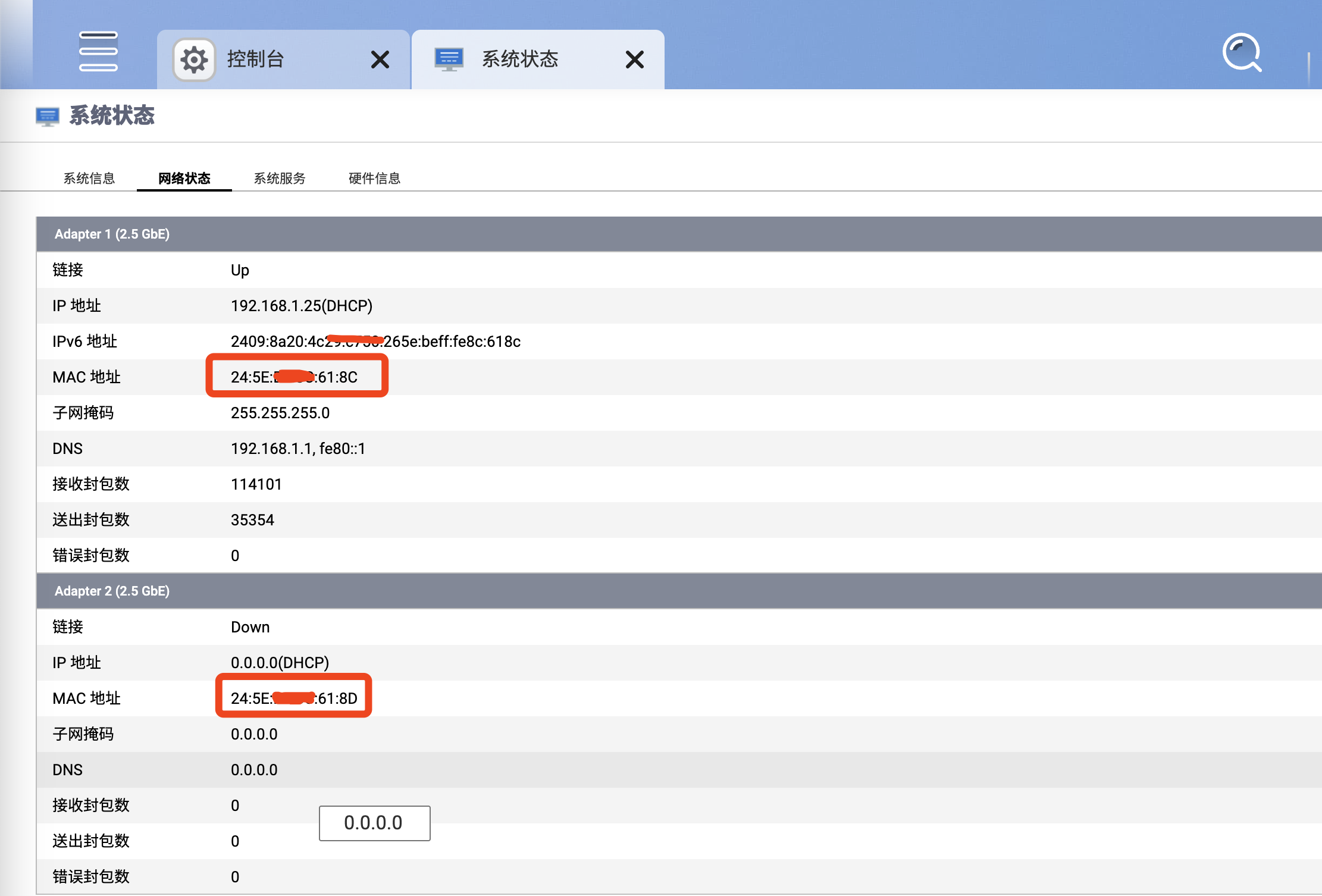
- Get MAC Address:
- In the Control Panel, click System Status -> Network Status.
- Find and record the MAC Address of the corresponding network card.
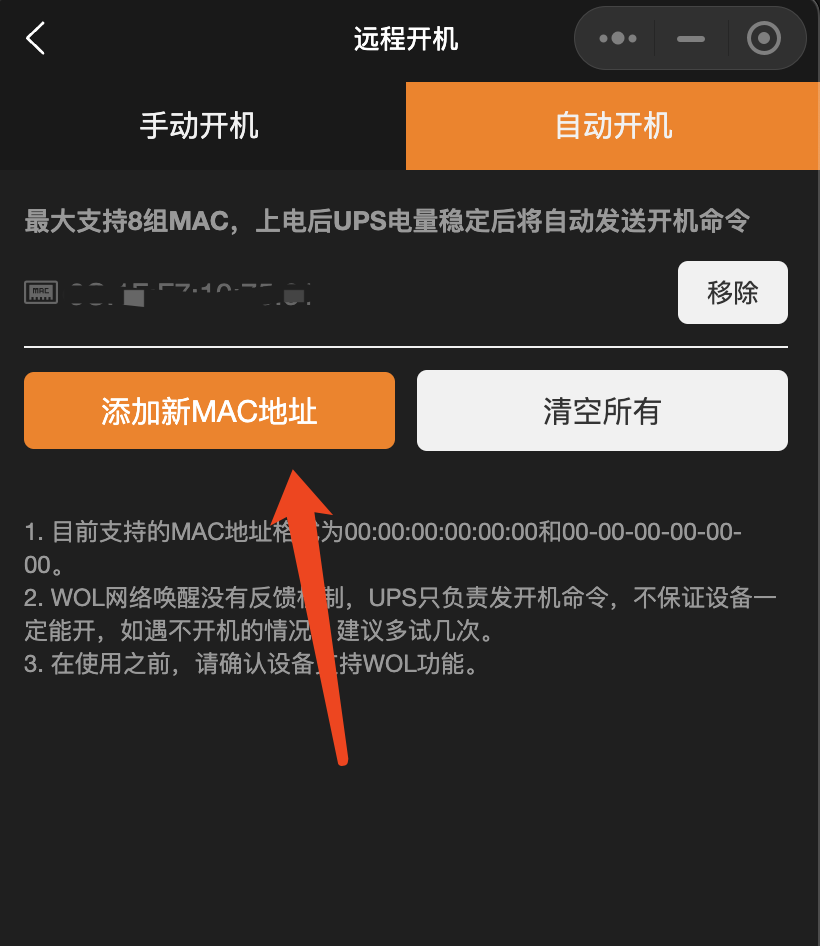
- Fill in the App: Fill the copied MAC address into the input box of the Remote Power-on -> Manual Power-on tab in the WalleCube app. Then click Power On Now to complete the remote power-on operation.
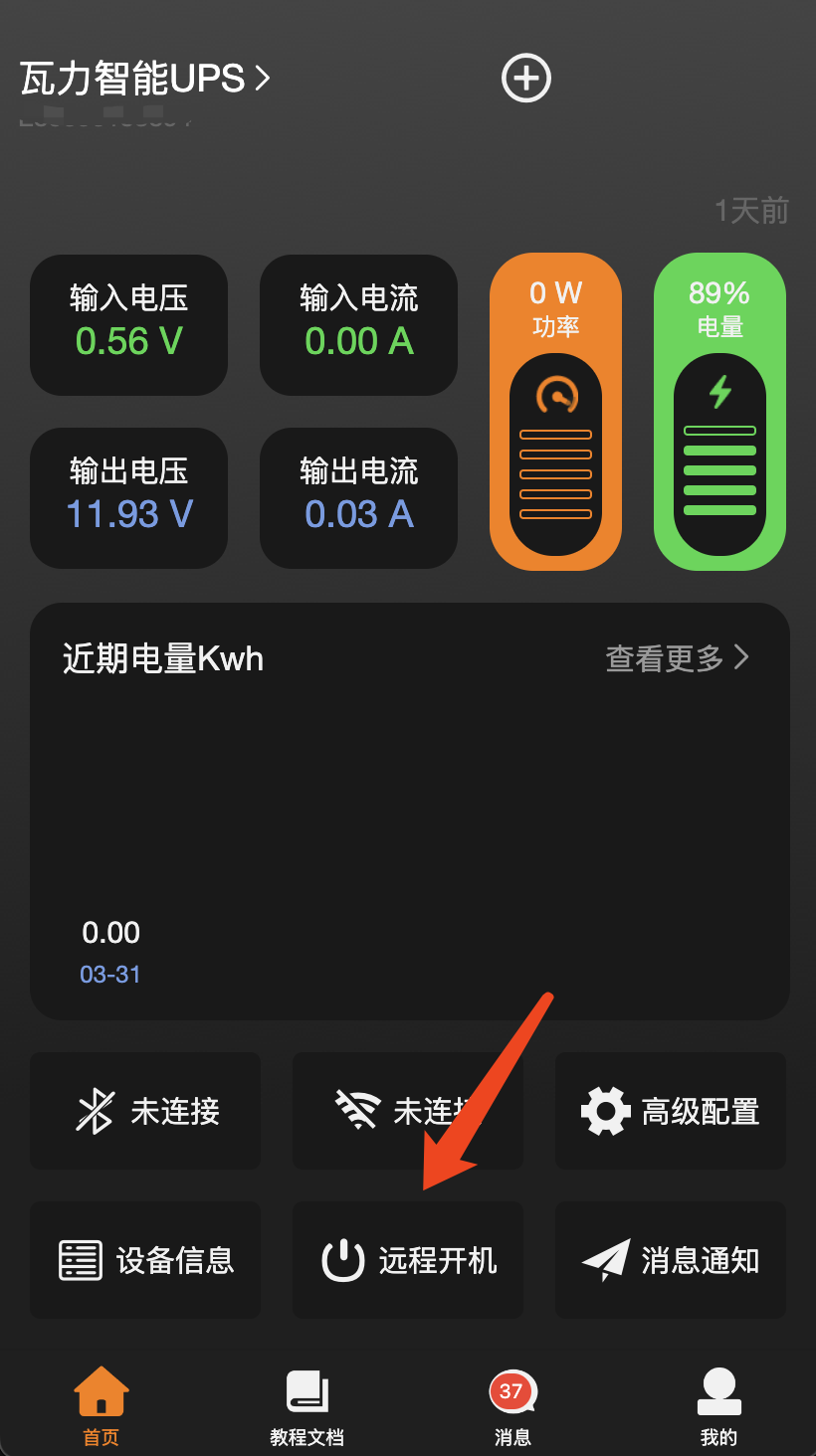
- Manual Power-on Record: The manual power-on MAC address only needs to be filled in once, and the system will automatically remember it.
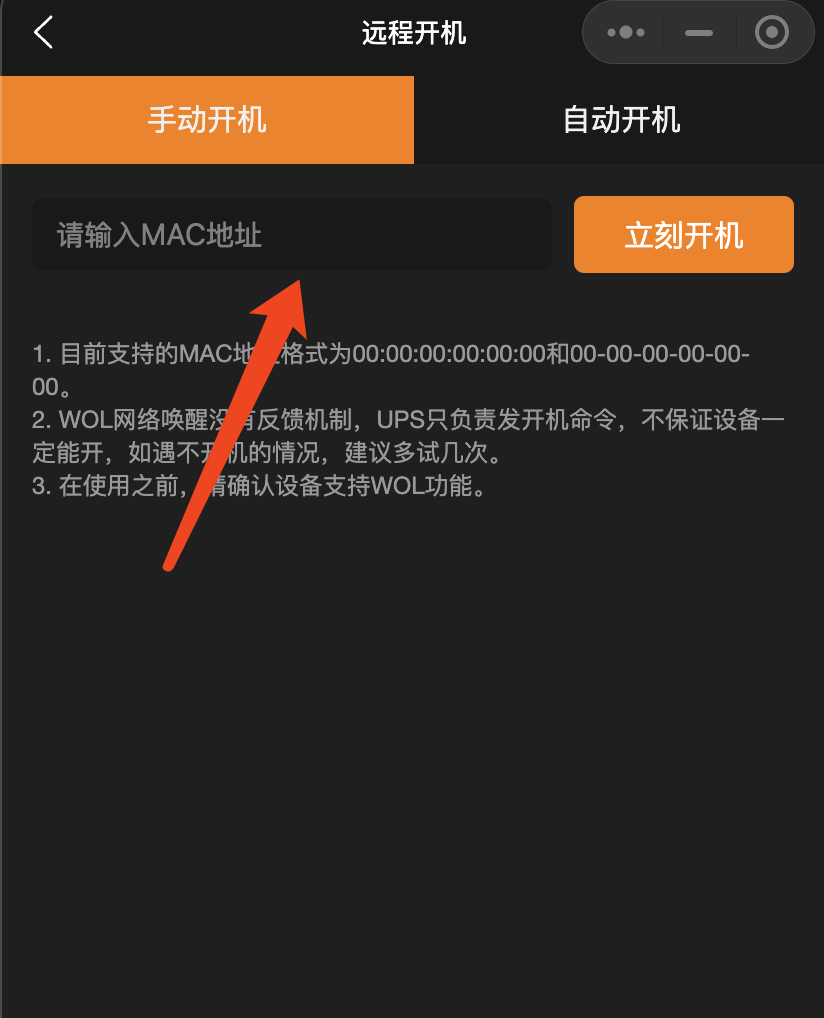
- Configuration Complete: You can also configure in the “Auto Power-on” position to achieve automatic wake-up after power failure.