UNRAID
This article will introduce how to configure WalleCube Smart UPS on the UNRAID background and related instructions for Remote Power-on (WOL).
Background Installation
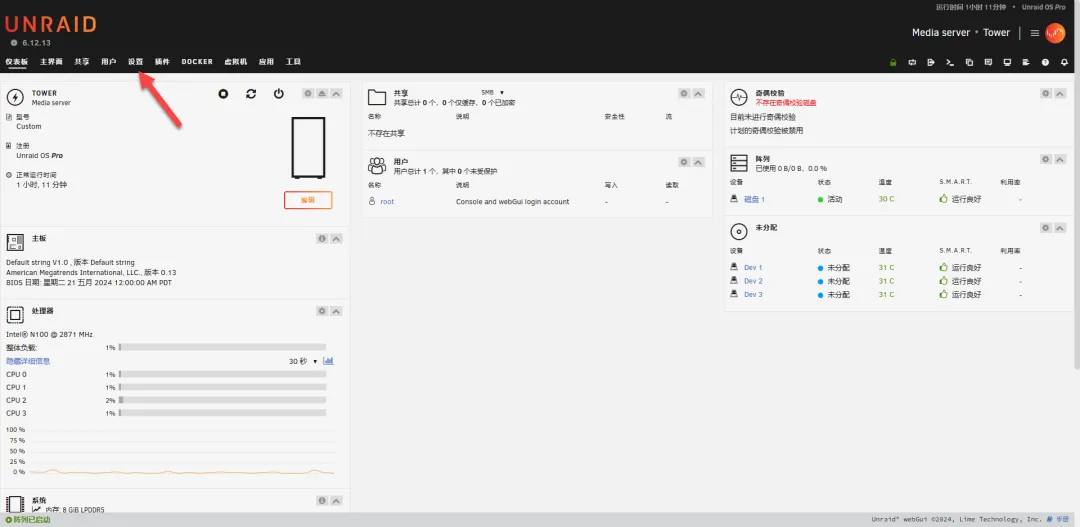
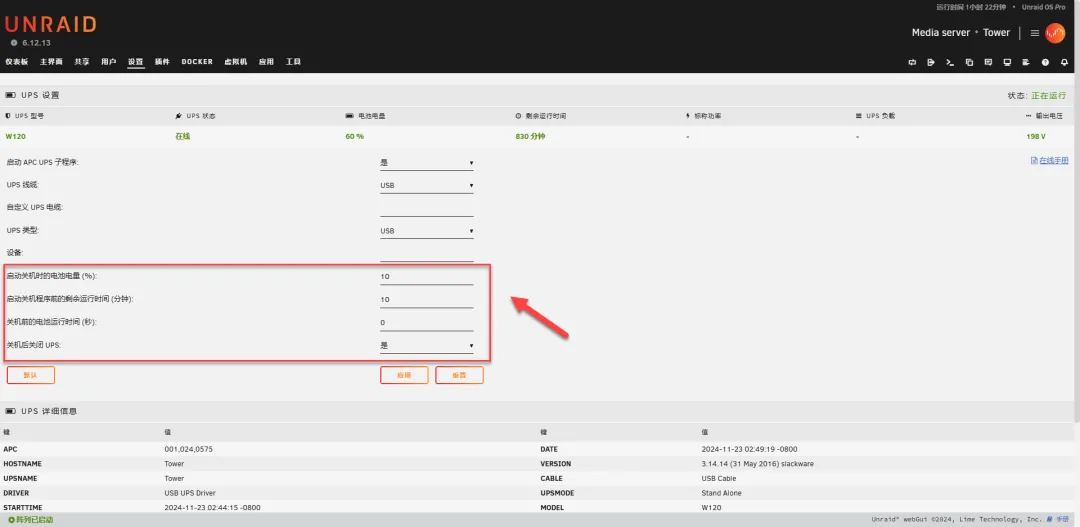
- Enter Settings: Log in to the UNRAID background and click Settings in the top navigation bar.
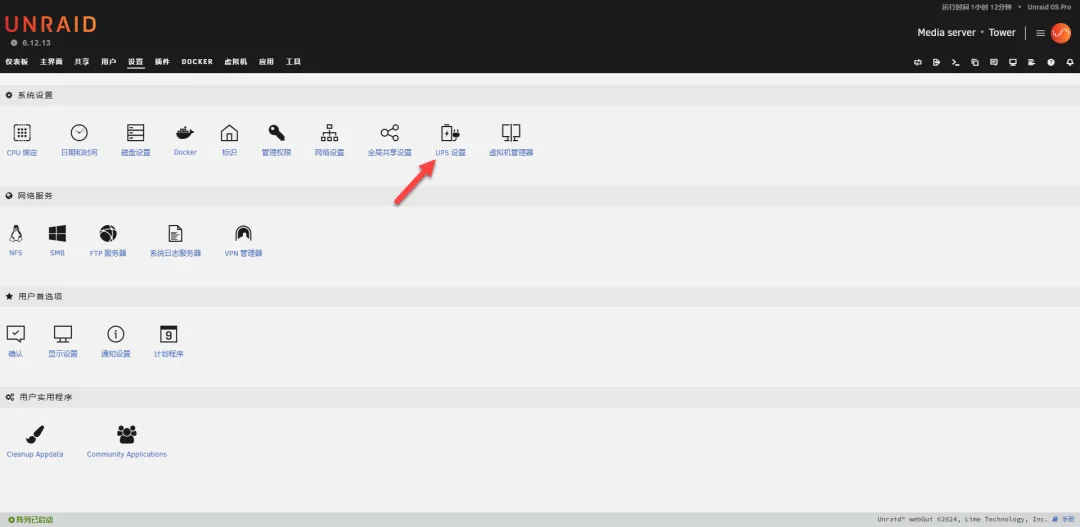
- Select UPS Settings: Find and click UPS Settings on the settings page.
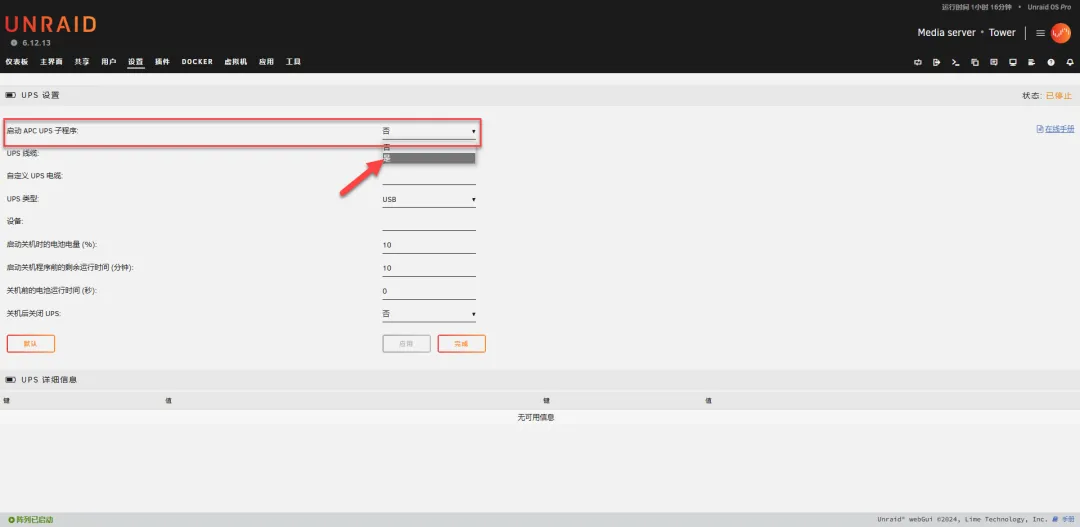
- Enable UPS Function:
- Set Start APC PDU daemon to Yes.
- UPS cable: Select USB.
- UPS type: Select usb.
- Check Status: After configuration, click Apply at the bottom of the page. If the connection is successful, you can directly see the detailed model and battery information of the UPS at the bottom of the page.
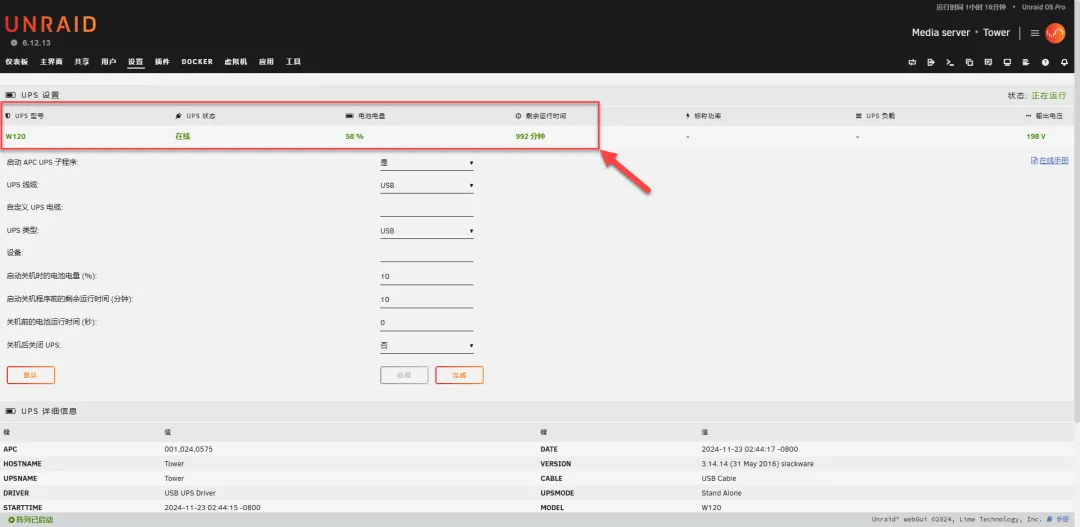
- Detailed Settings (Optional): You can adjust the shutdown strategy according to your personal needs, such as setting how many seconds to shut down after battery power supply. It is recommended to keep the default value or fine-tune according to actual needs.
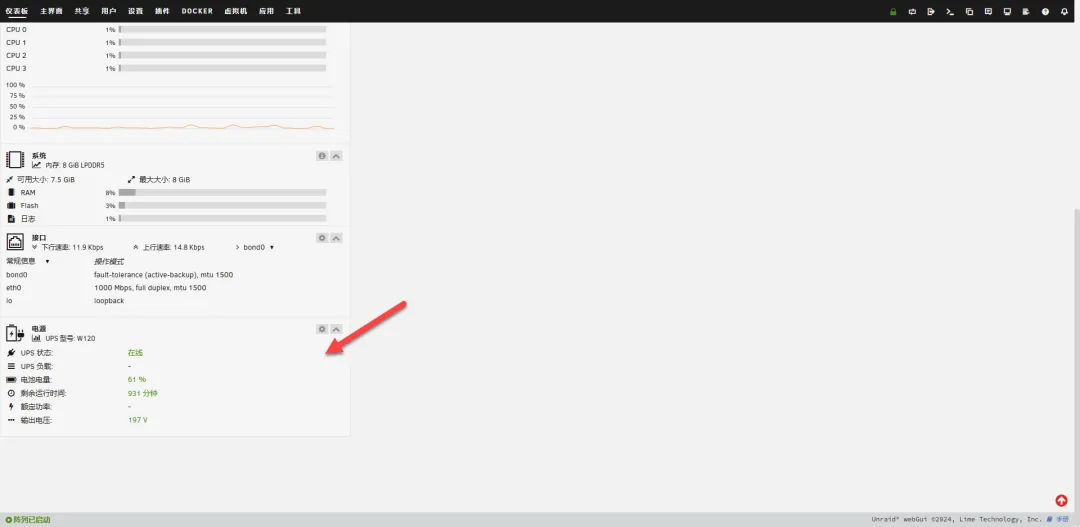
- Dashboard Display: Returning to the UNRAID Dashboard panel, the remaining battery and load status of the UPS will also be displayed in real-time on the right.
Remote Power-on (WOL)
UNRAID is usually installed on DIY hardware, and the remote power-on function mainly depends on your motherboard hardware support:
- Hardware Support: Please ensure that your host motherboard supports and has enabled the WOL (Wake on LAN) function in the BIOS.
- Local Area Network Test: It is recommended to download a third-party remote power-on app to test whether the host can be normally awakened in the local area network.
- App Configuration: If the test is successful, you can get the network card’s MAC Address and fill it into the Remote Power-on -> Manual Power-on tab of the WalleCube app. Click Power On Now after filling in to achieve remote management.